No matching sections. Try another search term.
Quick Start & Pairing
Three steps to connect your toy and start playing.
Wear the Owner HUD
Find the [S&G] Lovense Owner HUD in your inventory and attach it to your screen.
Connect your toy
Pair your toy with the free Lovense Connect app, then scan the QR code from the HUD's Connect button. Full walkthrough below →
Set up a partner (optional)
Want to share control? Drop the separate Partner HUD on the ground to initialize it, then pass it to a friend. See the Partner HUD section →
Connect to Lovense
Before your HUD can buzz, link your toy to Second Life through a free Lovense phone app. It takes about two minutes, and you only do it once per session.
Either Lovense app works
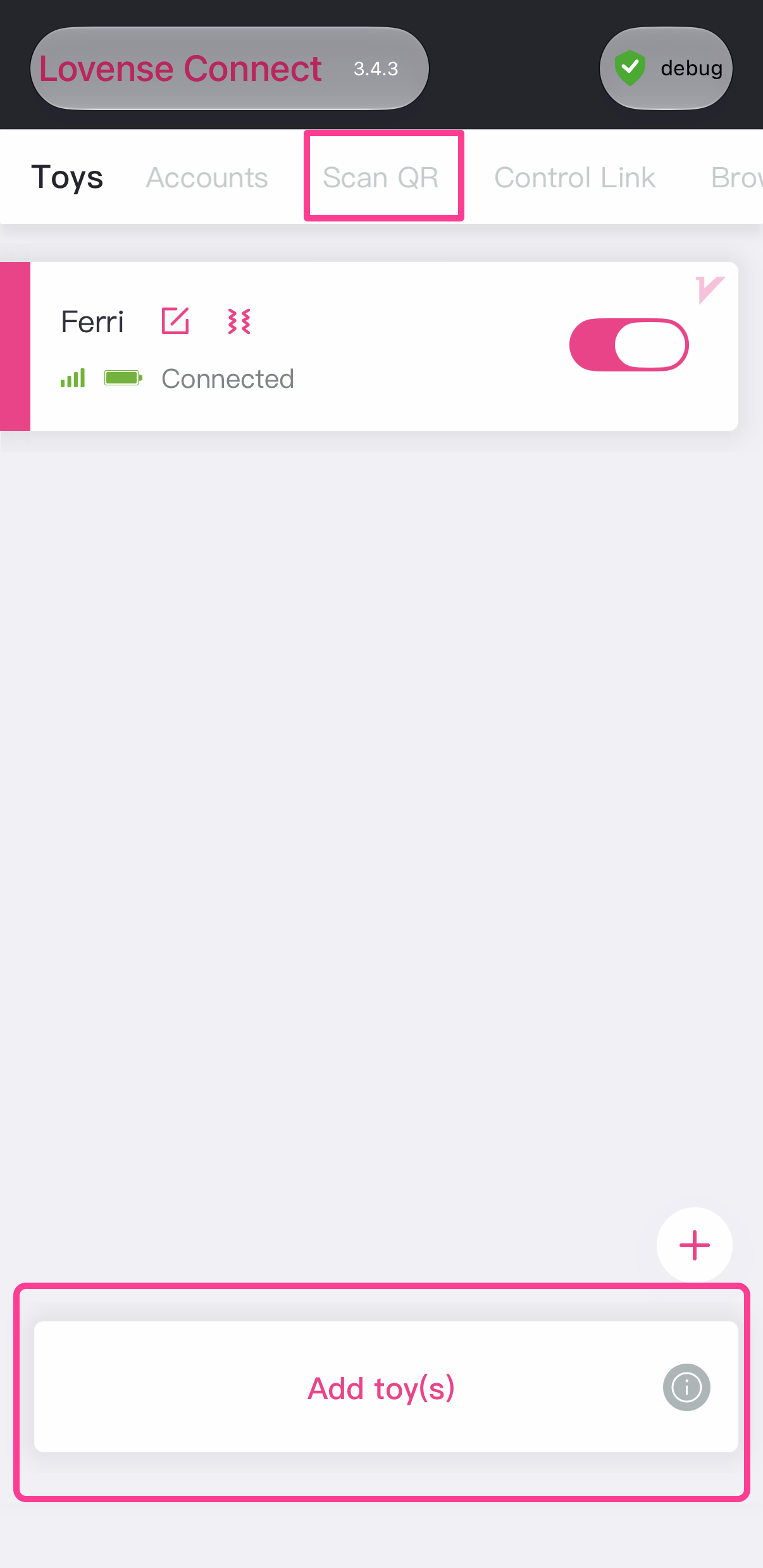
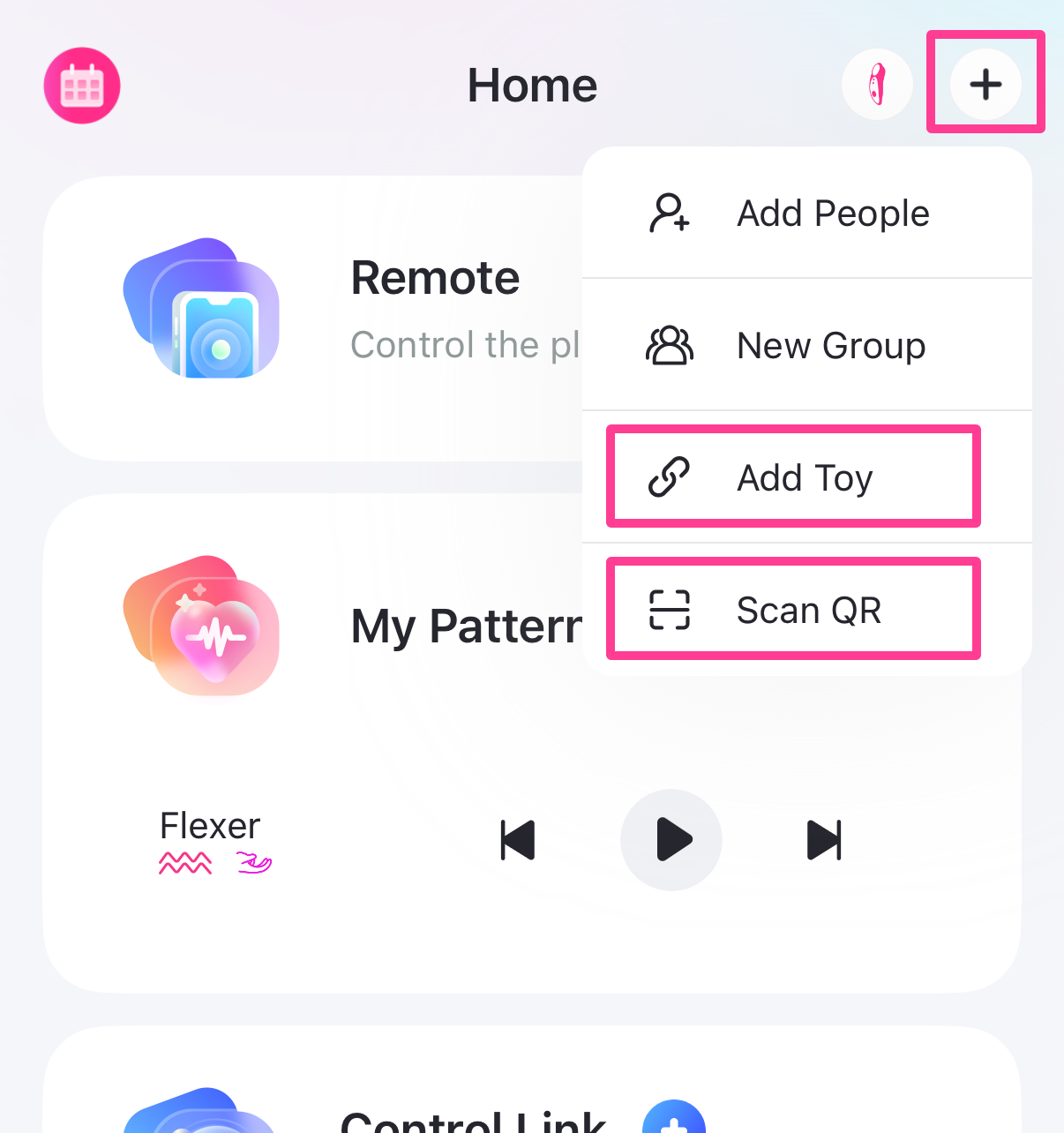
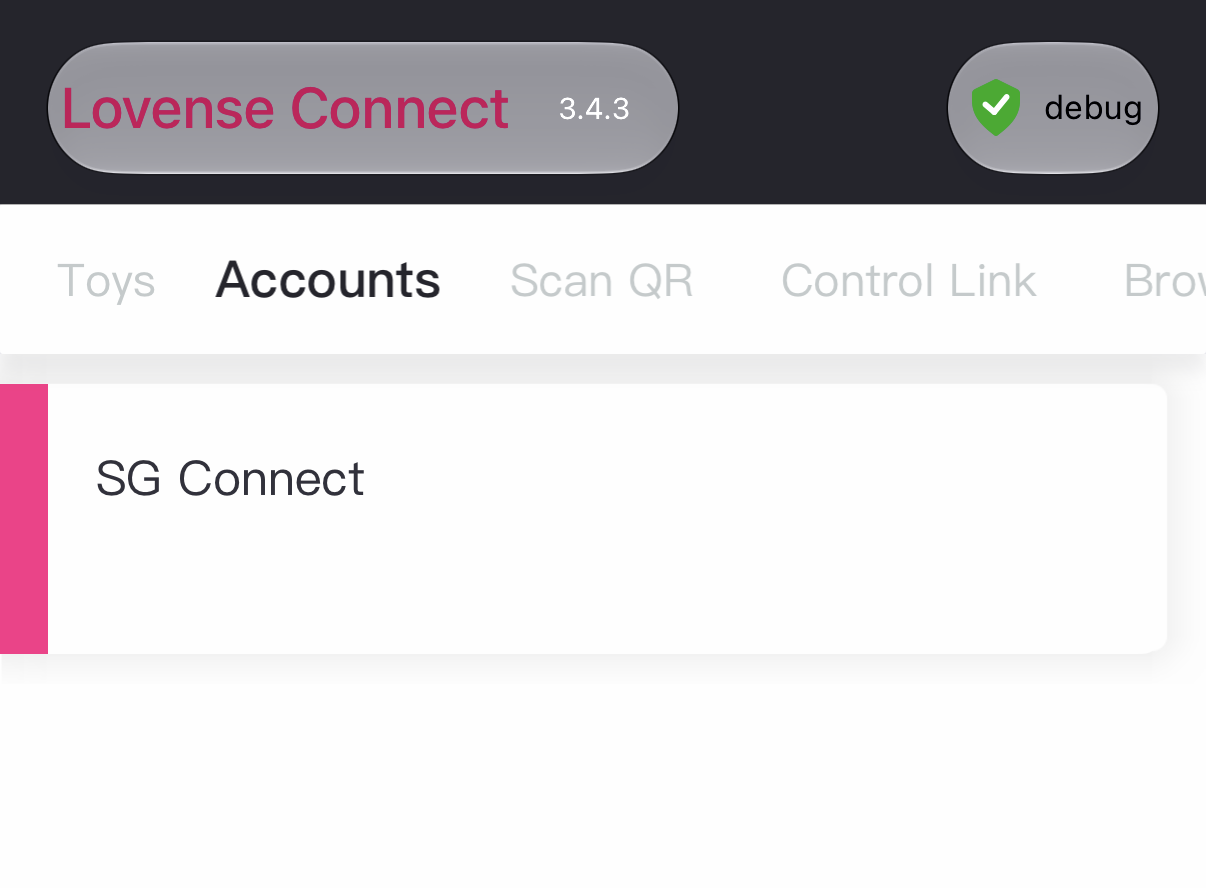
Use Lovense Connect or Lovense Remote - our HUD works with both. They just look a little different: in Connect, "Scan QR" sits in the top bar; in Remote, tap the + button first, then "Scan QR". Screenshots of both are shown below.
Get a Lovense app
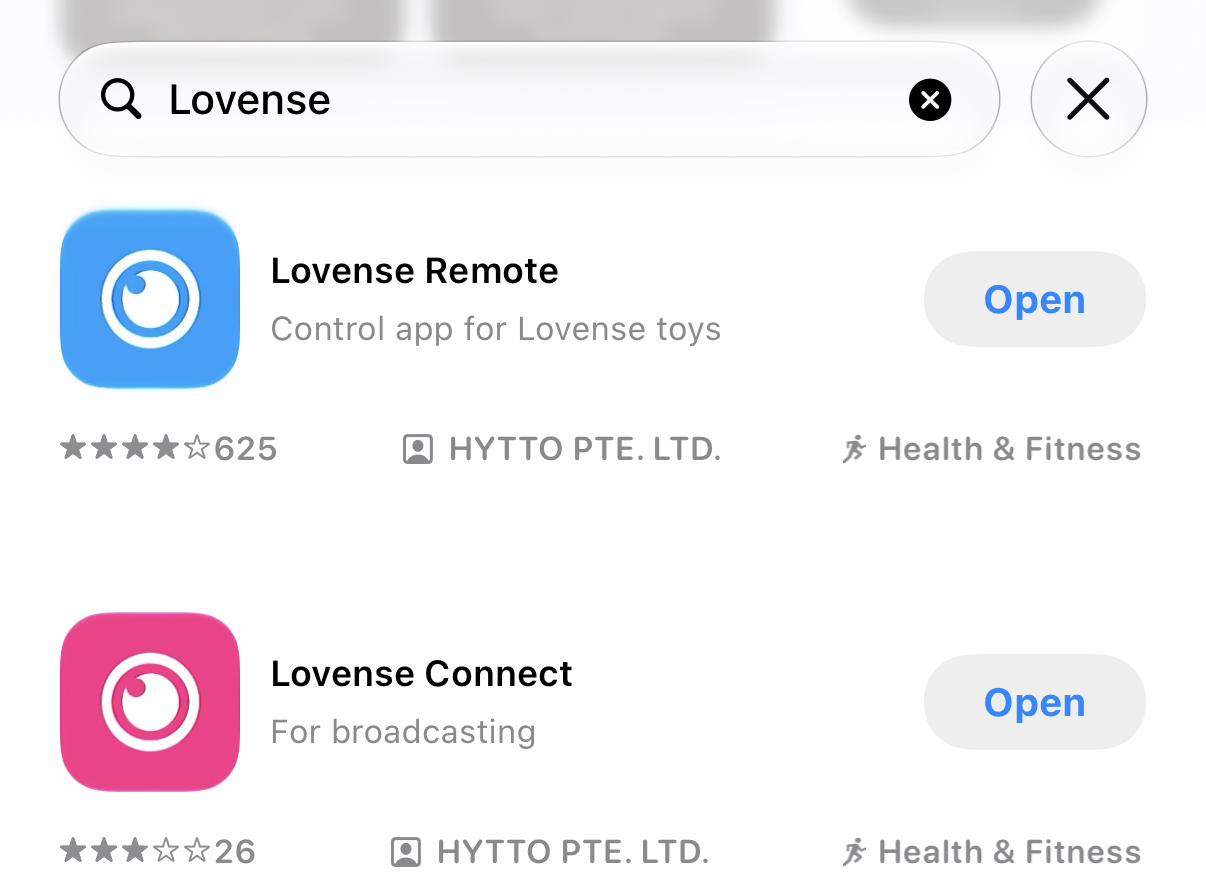
Search Lovense in your phone's app store and install either Lovense Connect or Lovense Remote (both free, iOS & Android).
Add your toy
Turn your toy on and pair it over Bluetooth. In Lovense Connect, tap Add Toy. In Lovense Remote, tap the + button, then Add Toy (the same menu also holds Scan QR).
Get your QR code in Second Life
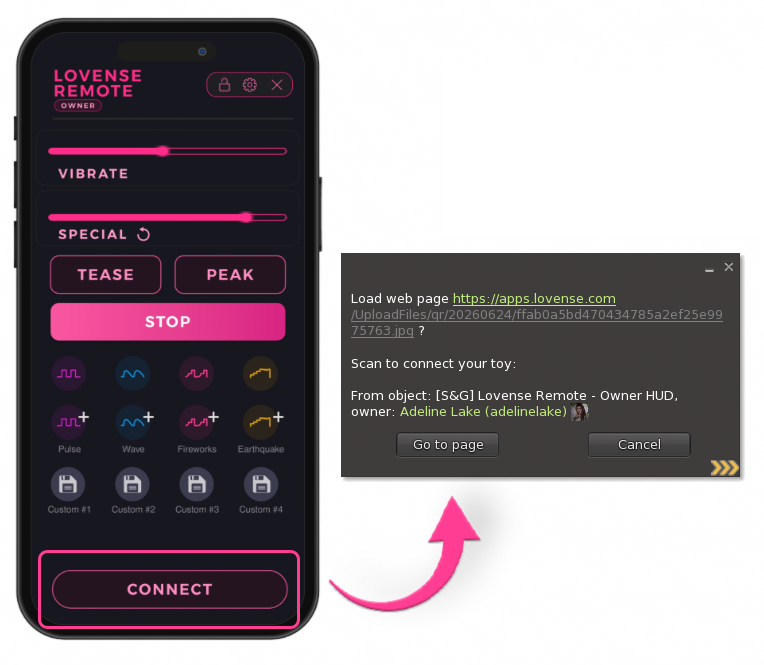
Wear your S&G Owner HUD and click CONNECT (highlighted below). A dialog opens with a link to your personal QR code - click it to show the code on screen.
Scan the QR code
Open the scanner in your app and point it at the code on your screen. Connect: tap Scan QR in the top bar. Remote: tap +, then Scan QR.
Authorize (Lovense Remote)
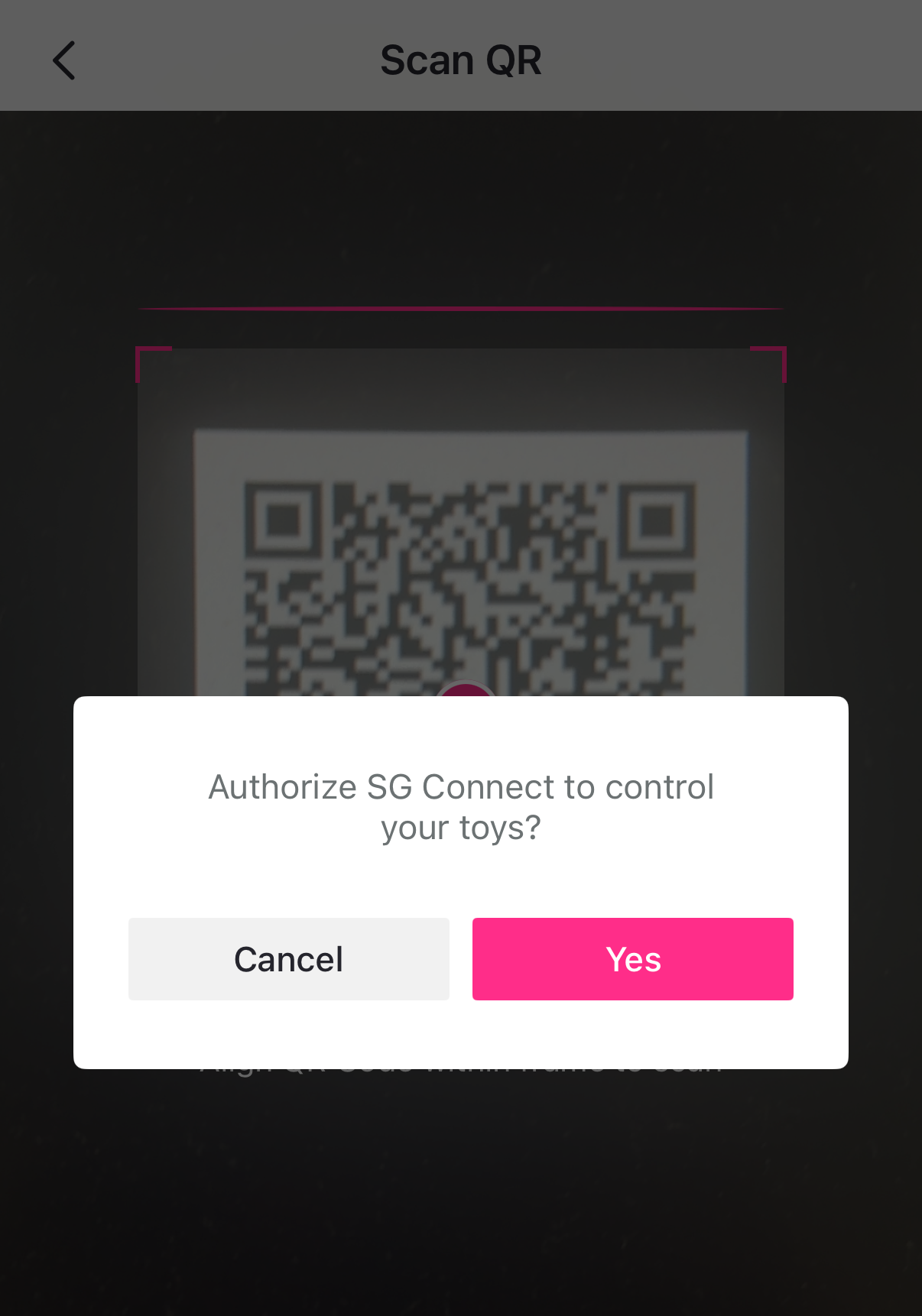
If you're on Lovense Remote, it asks whether to let SG Connect control your toys - tap Allow. (Lovense Connect skips this and links right away.)
You're connected
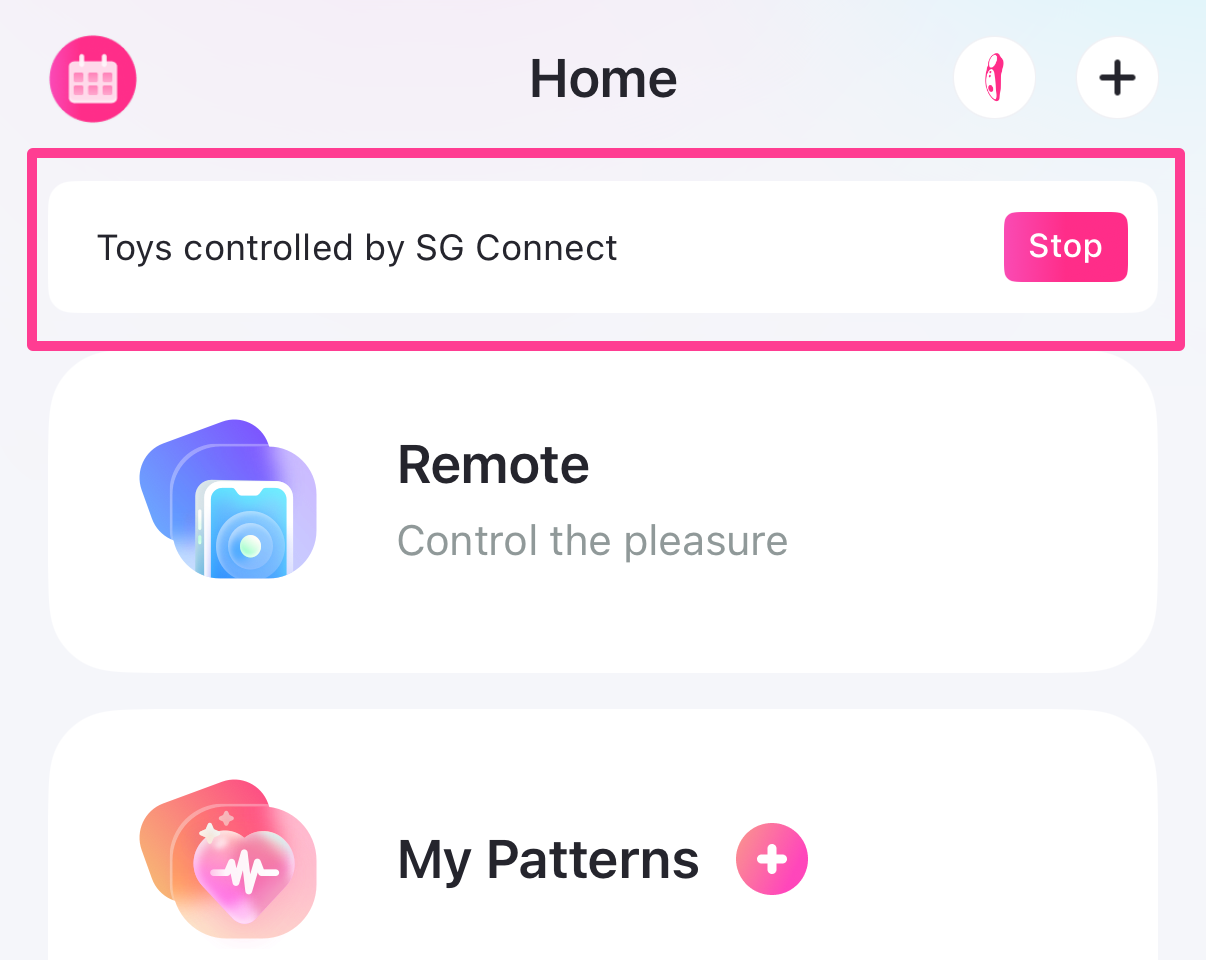
The app shows your toys are now controlled by SG Connect. Tap any control on the HUD to feel it work - you're ready to play.
Keep the app running
Your Lovense app must stay open while you play (phone unlocked, app in the foreground). If the toy stops responding, reopen the app and press Connect on the HUD again.
HUD Controls
Hover over any control - or tap it on mobile - to see exactly what it does. The Owner HUD is on top, the Partner HUD below it.
Minimize the HUD
Tap the LOVENSE REMOTE logo at the top-left of either HUD to fold it away to a slim tab and free up your screen. Tap the tab to bring it back. While it's minimized the HUD ignores every other button, so nothing fires by accident.
The Lock button needs RLV
Locking the HUD in place uses an RLV command, so it only works if your viewer has RLV / RLVa enabled. Without it, the Lock button simply does nothing - everything else on the HUD works either way.
Owner HUD
Partner HUD
Custom Patterns
Don't settle for the defaults. Record and save your own intensity graphs to your four Custom slots using the web-based Pattern Editor.
Recording a Pattern
Press and hold a Custom slot on your HUD to open the editor, or use the web portal. Hit Record and drag the slider to draw your intensity graph - up to 10 seconds per pattern.
Multi-Motor Sync
When a custom pattern plays, the server automatically syncs it across all available motors on your toy - vibration, rotation, and thrusting pulse together.
The Web Portal
Manage your blocklist and custom patterns from any web browser - no need to be in-world. The portal is reserved for HUD owners; partners don't get access.
Open the menu
On your Owner HUD, tap Settings, then Web Login.
Click the link
Your HUD drops a single-use login link into local chat - click it and you land on your dashboard already signed in, no code to type. The link works once and lasts 10 minutes; tap Web Login again any time for a fresh one. Only you can see it.
Stay signed in
Your dashboard remembers you for 30 days on that device, so your next visit skips the link entirely. You can Log out any time from the button in the top corner.
Manage your blocklist
See everyone you've blocked with their avatar name and a clickable profile link, and block or unblock instantly. Blocks are enforced by the server, so they take effect right away - whether or not you're wearing your HUD.
Build your patterns
Create or edit any of your four Custom slots - open the visual editor for a slot, or type the strength and speed values by hand. They play the next time you or your partner select that custom slot on your HUD. (Owner slot on partner HUDs)
No password, ever
Your HUD proves it's really yours, so there's nothing to remember and no password to leak. Tap Web Login and click the link it drops in your local chat - that's it, you're in. Only the owner wearing the HUD can pull the link, and only they can see it.
The Partner HUD
The Partner HUD gives friends, doms, or subs a physical interface to control your toy from anywhere in Second Life.
Rez it
As the toy owner, drag the Partner HUD from your inventory and drop it on the ground.
Name it
A dialog asks for a display name (e.g. "Master", "Brat", "Sub1"). Use A–Z and 0–9 only.
Lock it
Once named, the HUD permanently locks to your Owner UUID and the lock icon closes.
Pass it
Take the locked and named HUD back into your inventory and give it to your partner(s).
Partner Customs vs. Owner Customs
The Partner HUD has two sets of custom slots:
- Owner Customs - trigger the patterns you recorded on your Owner HUD. Your partner can play them but cannot edit them.
- Partner Customs - by holding a button for 1 second, your partner opens the editor and records their own patterns, saved exclusively to their UUID.
Security & Blocklist
You always have the final say. If a partner gets out of hand, revoke their access instantly - no need to retrieve their HUD.
Block a partner
On your Owner HUD, tap Settings → Access → Block Avatar and paste their UUID (or do it from the web portal). Their HUD goes silent immediately.
Unblock
Remove a UUID via Settings → Access → Unblock Avatar to restore access instantly. Their existing HUD starts working again - no new HUD needed.
See who's blocked
Tap Settings → Access → List Blocked and your HUD prints each blocked avatar as a clickable profile link in local chat. The web portal shows the same list with names.
Troubleshooting & FAQ
Why does my rotation stop when I play a custom pattern?
It's a hardware limit of the physical toy. The toy has a "single-state brain" and can't run a dynamic, wavy pattern on the vibrator while holding a flat, constant speed on the rotation motor.
The fix: our system syncs your pattern across all active motors. The rotation won't be constant, but it pulses in perfect rhythm with your vibration.
Why did my pattern stop when I touched a slider?
Sliders are hard overrides. If you touch Vibrate or Special during a pattern, the server tells the toy to stop the loop so it can safely apply your new slider level without crashing the toy.
My Partner HUD says "Pattern slot empty"!
That slot just doesn't have a pattern saved yet.
If they tapped an Owner Custom (top row), it's empty because you haven't recorded a pattern in that slot on your Owner HUD yet. If they tapped one of their own Partner Customs (bottom row), the HUD hands them a link to record it on the spot - just tap the empty slot and click the link it gives you (or press and hold to jump straight to the editor).
Web Login isn't logging me in.
Make sure you tapped Settings → Web Login on your Owner HUD (partners can't log in). Click the link it drops in your local chat within 10 minutes - each link works once, so if it's older than that, just tap Web Login again for a fresh one. Only you can see the link.
The portal blocklist shows "Unknown" for someone.
Avatar names are looked up from their Second Life profile and cached. If a name hasn't loaded yet, give it a moment and refresh - the clickable profile link still works in the meantime.
Privacy & Your Data
We keep it minimal, and you stay in control.
You control the connection
Your toy only responds while your Lovense app is open and connected. Close the app, or tap Stop, and all control cuts out instantly - nothing can reach your toy when the app is closed.
What we store
Only what the HUD needs to work: your blocklist, your saved patterns, and your current settings, tied to your Second Life UUID. No real-world identity, no chat logs, no record of how you use it.
Clearing your data
Your blocklist and patterns are yours to change or clear any time, from the HUD or your dashboard. Want everything wiped from our server? Message Adeline Lake in-world and we'll remove it.